How to Automate Mockups in Photoshop
By Usama Saad · Updated Aug 28, 2026
Convert a manual Photoshop mockup process into folder jobs, CSV rows, queues, naming rules, and repeatable exports.
The safest way to automate mockups in Photoshop is to start with a process that already produces one correct result. Then separate the fixed rules from the content that changes.
Write down the current manual process
Record which PSD you open, which smartobject you replace, how artwork is resized, where it is aligned, which formats you export, and how the file is named. If a step depends on visual judgment every time, it may still need manual review.
Choose a batch model
Folder combinations
Use folder mode when every design should be applied to every PSD template. This suits product colors, scene collections, and standard POD image sets.
CSV rows
Use CSV mode when each output is a planned combination. A row can select a template and provide text or image values for matching Photoshop layers.
Multiple smartobjects
Use a multi-target workflow when one PSD contains front, back, label, frame, or other independent artwork slots.
Configure production rules
- Select template, design, and output folders.
- Choose smartobject targets.
- Set fit, fill, conform, native size, alignment, or guide behavior.
- Select WEBP, PNG, JPG, PSD, or PDF output.
- Define a filename that remains unique.
- Add watermark settings only when the outputs require them.
Test one job
Use one or two templates and designs. Inspect output visually and confirm that filenames do not collide. Check different aspect ratios and both light and dark artwork. Fix the job or PSD before increasing its size.
Add validated work to the queue
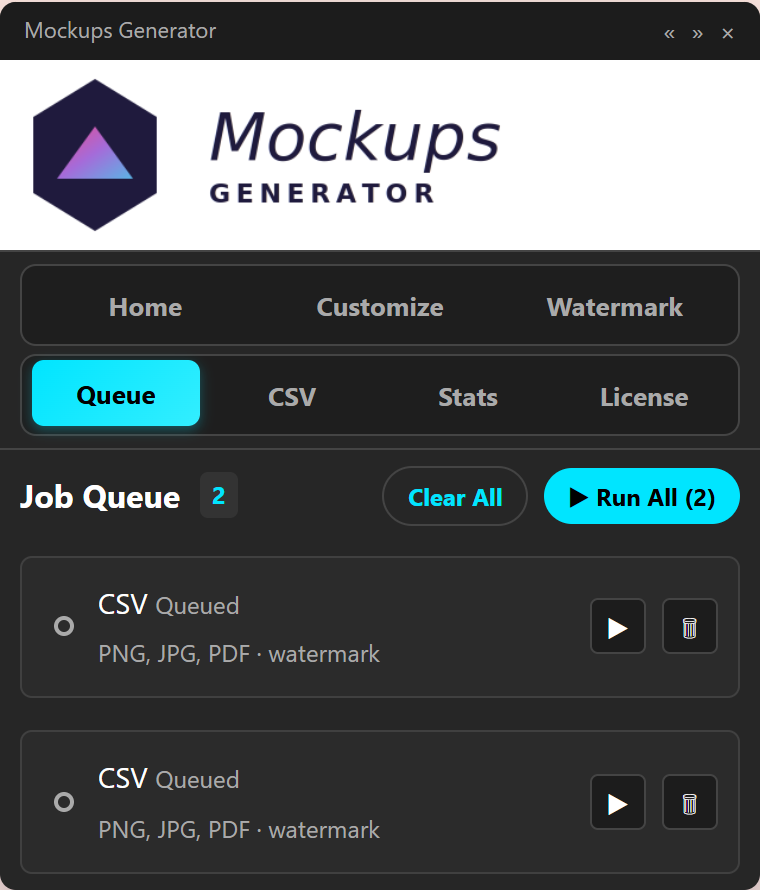
Keep different product groups as separate queue jobs so their settings remain understandable. A wall art batch, apparel batch, and CSV catalog should not share a job merely because they run on the same day.
Queue persistence helps recover planned work after an interruption, but you should still check which files finished before resuming. Avoid overwriting correct outputs without a reason.
Review production results
Automation reduces repetitive input, not quality control. Sample the beginning, middle, and end of each batch. Verify smartobject placement, text overflow, watermark visibility, export quality, and output counts.
Review the full Photoshop automation workflow or try the panel free.
Continue with Photoshop mockup automation
Browse all Photoshop tutorials, explore the Photoshop bulk mockup generator, or try 150 lifetime generations free.