Photoshop Smartobject Automation: A Production Guide
By Usama Saad · Updated Aug 28, 2026
Learn how smartobject automation differs from manual editing and Photoshop Actions, and how to prepare reliable PSD production jobs.
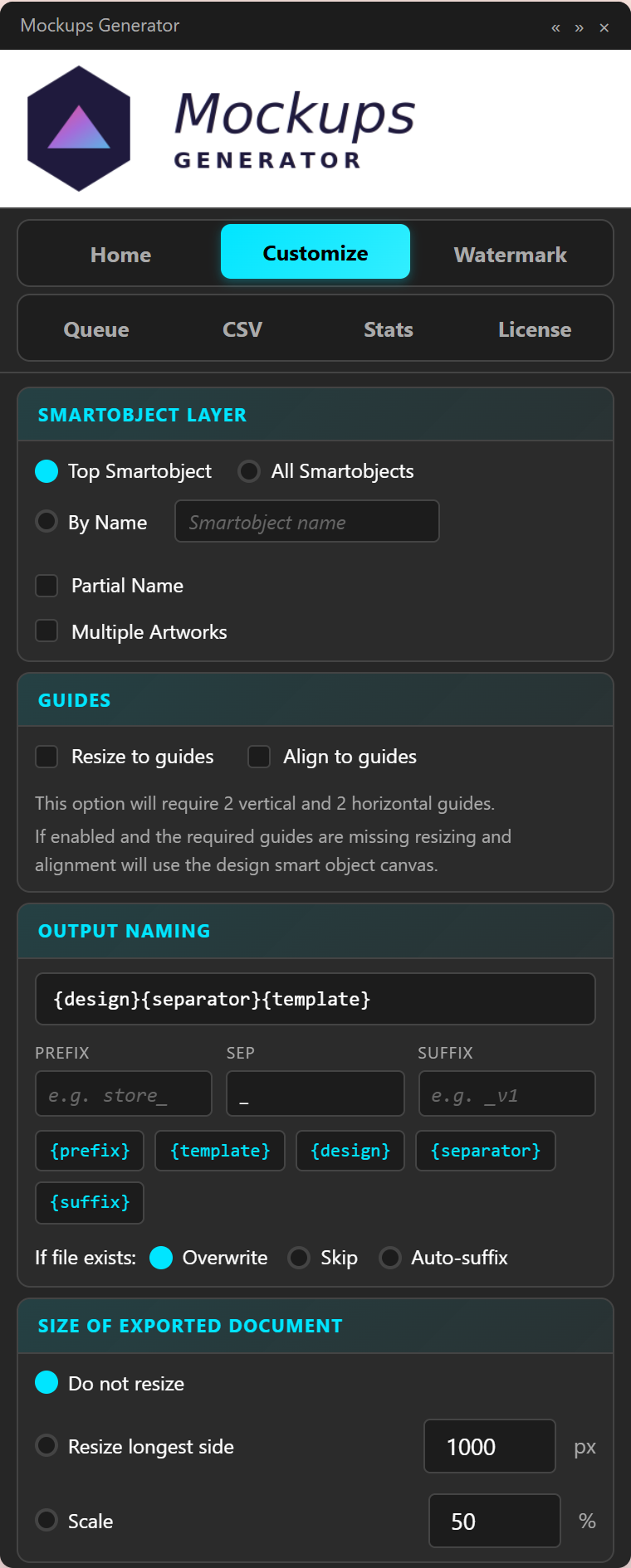
Photoshop smartobject automation is useful when a working PSD template must render many artwork variations without changing its visual treatment. The goal is not to replace Photoshop. The goal is to describe the repeated parts of the job clearly enough that a panel can perform them consistently.
What a smartobject preserves
A smartobject lets a PSD hold replaceable content while the parent document retains transformations, masks, filters, blend modes, and other presentation layers. When a template is designed correctly, replacing the embedded content updates the finished scene without rebuilding the effect.
Manual editing, Actions, and panel automation
Manual editing gives maximum control for a small number of files. Photoshop Actions can replay recorded steps and are useful when documents have the same structure. They become fragile when filenames, layer names, target counts, canvas sizes, or output requirements vary.
A production panel stores explicit settings instead of replaying pointer positions. You select folders, target behavior, fit, alignment, output formats, naming, and optional watermark rules. The panel then applies those choices to each planned output.
Prepare smartobject templates for automation
- Confirm that the artwork slot works manually.
- Use clear and consistent layer names.
- Decide whether several smartobjects are linked or independent.
- Keep the intended printable area consistent or mark it with Photoshop guides.
- Test the longest, widest, and smallest representative artwork.
- Save a clean template copy before running production.
Choose the right content model
Use a folder combination when every artwork should appear in every template. Use CSV data when every output needs a specific template, text, image, language, SKU, or personalization value. Use multiple-smartobject mode when one PSD contains several artwork targets.
Validate before scale
Automation repeats both correct and incorrect settings. A two-design test can reveal the wrong smartobject, unexpected cropping, linked content, missing guides, or a filename collision. Review the output before queueing a larger collection.
Keep output traceable
Use filenames that identify the source design and template without exposing private customer information. Separate formats into organized folders. Retain editable PSD output only when it is operationally useful because those files require more storage.
When automation is not the right choice
Edit manually when every output requires unique creative judgment. Use a browser generator when its existing template library is the real requirement. Use smartobject automation when the PSD system is already approved and the repeated work is predictable.
Explore Photoshop mockup automation or take the interactive panel tour.
Continue with Photoshop mockup automation
Browse all Photoshop tutorials, explore the Photoshop bulk mockup generator, or try 150 lifetime generations free.