How to Batch Replace Text and Images in Photoshop
By Usama Saad · Updated Aug 28, 2026
Map CSV fields to Photoshop text layers and smartobjects for catalogs, personalized products, and multilingual image production.
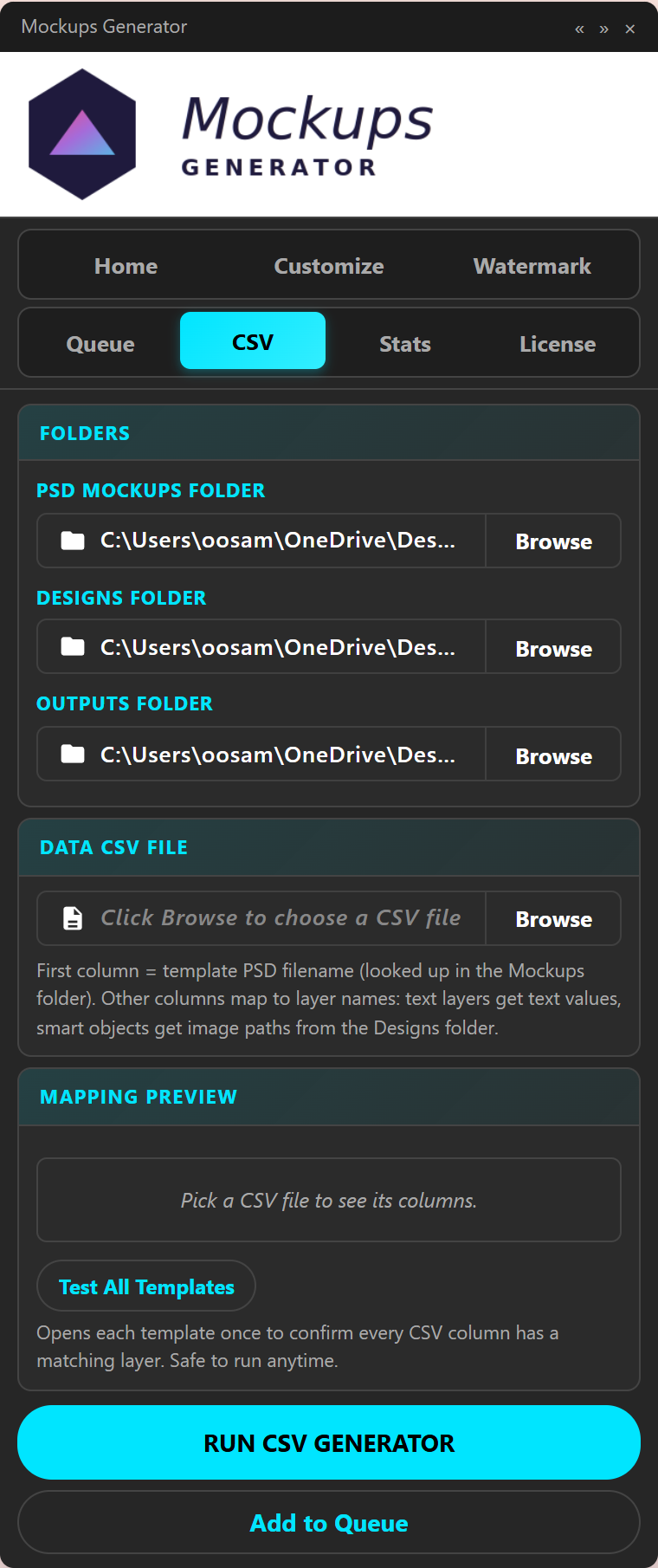
Batch replacing text and images is a variable-data workflow. Each spreadsheet row supplies the content, while the PSD supplies typography, layout, masks, lighting, and smartobject effects.
Decide what should remain editable
Keep styling in Photoshop. Use CSV data for values that change, such as product name, price, language, SKU, customer name, front artwork, or label image. Avoid trying to control every visual property from the spreadsheet.
Name the PSD layers clearly
Use text layer names such as product_name or subtitle and smartobject names such as front_art or badge. Stable names make the mapping understandable to another person and reduce errors when a template is revised.
Build representative CSV rows
Include normal content and difficult cases:
- The longest product title
- The shortest title
- Accented or non-Latin characters
- A missing optional image
- Wide, tall, and square artwork
- Repeated templates with different content
Validate fonts and text areas
Photoshop must have the required fonts. Check how the PSD behaves when a translation or customer name is longer than the sample text. Automation cannot choose a smaller font or rewrite text unless that behavior is explicitly part of the product feature.
Validate artwork mapping
Confirm that image filenames point to accessible local files and that each column targets the intended smartobject. Use fit when the full image must remain visible and fill only when crop is acceptable.
Protect customer data
Personalized-product spreadsheets can contain personal information. Store them securely, limit access, and remove them according to your retention policy. Do not include customer email addresses or full names in public output filenames unless there is a justified operational requirement.
Run a small batch first
Inspect text alignment, line breaks, clipping, artwork crop, missing values, and output naming. Correct the PSD or data before processing the complete file.
Review final outputs
Count the rows and expected files, then sample outputs from each template. Keep error rows separate for correction instead of silently accepting incomplete content.
Explore batch text and image replacement and learn about Photoshop variable data.
Continue with Photoshop mockup automation
Browse all Photoshop tutorials, explore the Photoshop bulk mockup generator, or try 150 lifetime generations free.