Bulk Front and Back T-Shirt Mockups in Photoshop
By Usama Saad · Updated Aug 28, 2026
Prepare apparel PSDs, pair front and back artwork, control print areas, and export organized T-shirt mockup sets.
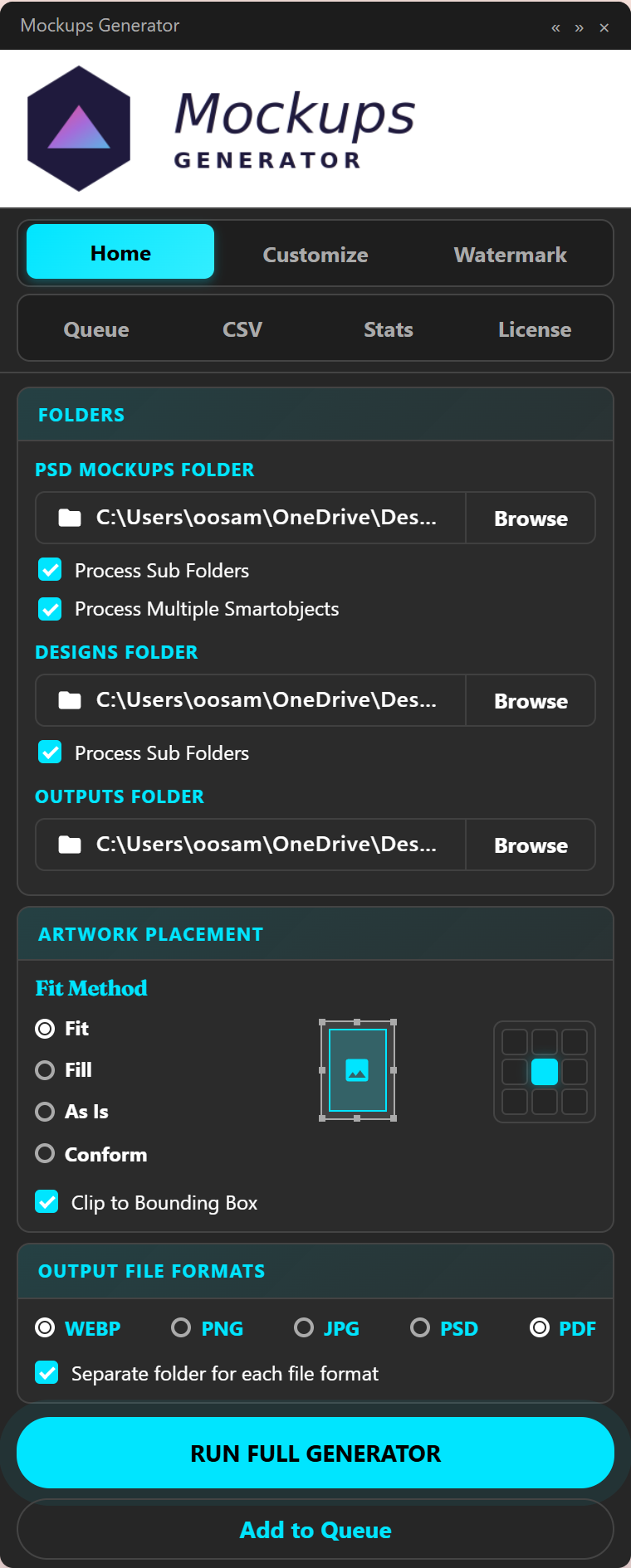
Front-and-back T-shirt mockups usually contain two independent smartobjects or two coordinated PSD templates. Automation works best when the target order, artwork pairing, and shirt variations are explicit.
Inspect the apparel template
Open the PSD and identify the front and back artwork targets. Confirm whether they are independent. Check how fabric texture, displacement, shading, and garment color are produced. Save a clean copy before testing.
If the front and back are separate PSDs, treat them as related templates. If both views are in one PSD, use a multiple-smartobject workflow.
Pair artwork by order or CSV mapping
Sequence-based replacement can work when files and PSD layers always follow the same order. Use sortable filenames such as 001-front.png and 001-back.png.
CSV mapping is more explicit:
template,sku,front_art,back_art
Tee_Black.psd,TS-101,garden-front.png,garden-back.png
Tee_Cream.psd,TS-102,curious-front.png,curious-back.png
The row keeps template, SKU, and artwork together. Headers should match the layer names used by the PSD mapping.
Define the print areas
Front and back placements may have different proportions. Use consistent smartobject canvases or Photoshop guides. Test the widest and tallest designs to confirm that fit or fill behaves correctly.
Add shirt colors and scene variations
Use separate PSD templates when color and garment styling are encoded in the files. Keep a template identifier in the output name so black, cream, front, and back results do not overwrite one another.
Run a complete product sample
Generate one SKU across all required views and colors. Check both smartobjects, not only the first visible scene. Verify crop, order, transparency, texture, output dimensions, and naming.
Run the full apparel collection
Once the sample is correct, process the remaining rows or artwork pairs. Keep the output folder organized by product, format, or another stable rule that matches your listing workflow.
See the front-and-back shirt workflow and compare multiple-smartobject methods.
Continue with Photoshop mockup automation
Browse all Photoshop tutorials, explore the Photoshop bulk mockup generator, or try 150 lifetime generations free.